AI Test Case Drafts
AI Test Case Drafts helps you quickly generate, review, and convert AI-generated test cases into real test cases that can be executed in Test Plans and Test Runs.
This feature accelerates test design while still giving full control to testers before approval.
AI TestDraft Lifecycle
- Generate test cases using AI
- Open the generated draft
- Review generated test cases
- Approve or reject each draft
- Choose where to save the test case
- Confirm approval
- Use the approved test case in Test Plans
Step 1: Open the Generated AI Test Draft
After generating test cases using AI:
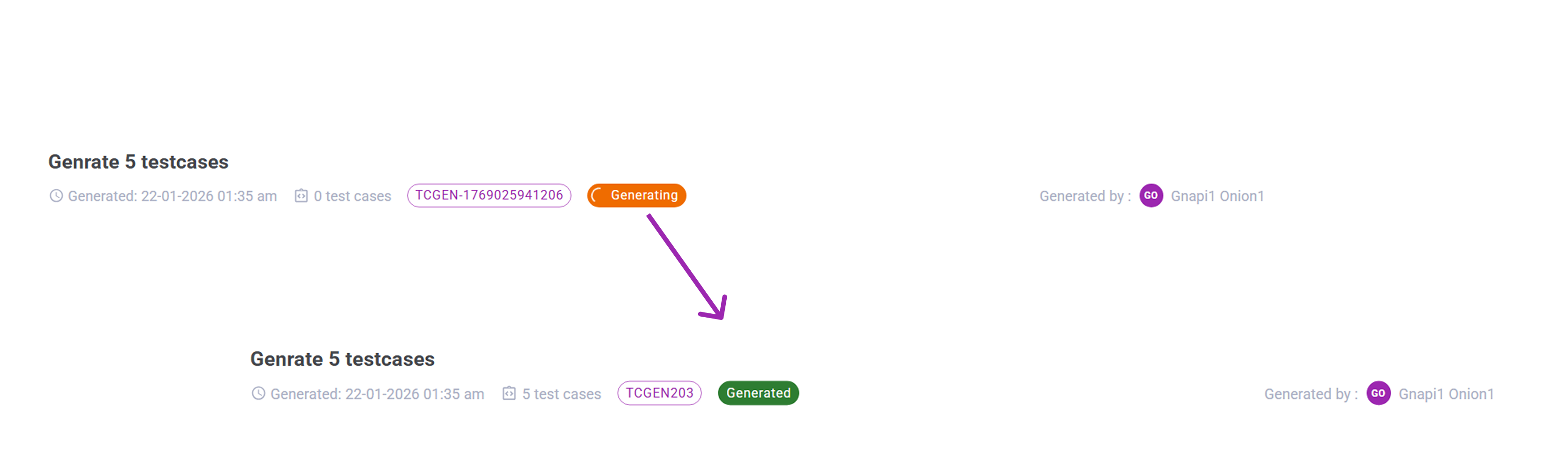
- You are automatically redirected to the AI Test Case Drafts section.
- The newly created draft appears at the top with a status.
Draft Status
| Status | Meaning |
|---|---|
| Generating | AI is creating test cases |
| Generated | Draft is ready for review |
- Wait until the status changes to Generated.
- Click the draft (for example: Generate 5 testcases).
Step 2: Review Generated Test Cases
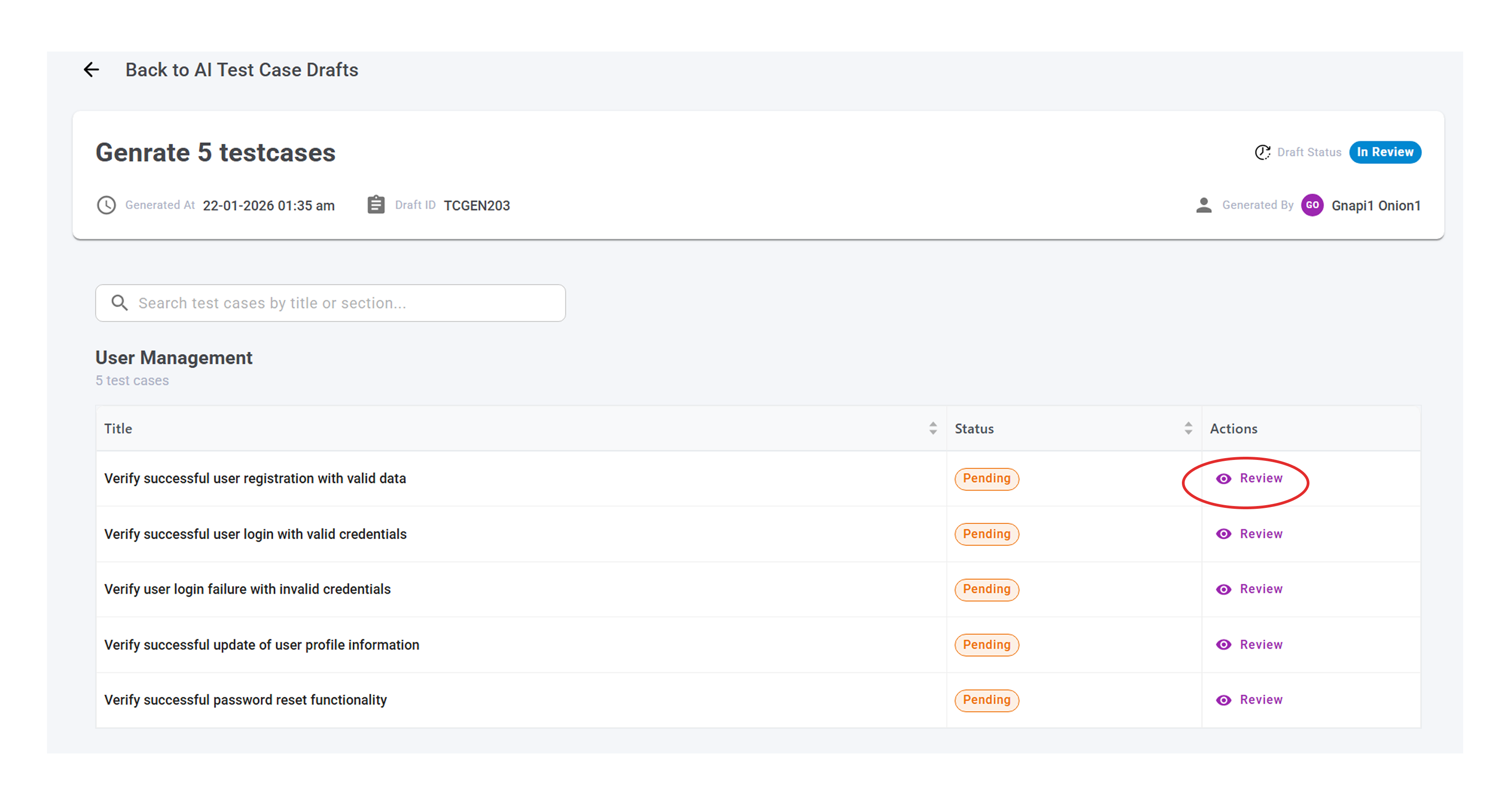
Inside the draft, you will see a list of all AI-generated test cases.
Each row shows:
- Title
- Status (Pending by default)
- Action (Review)
Click Review to open a test case.
Step 3: Review Test Case Details
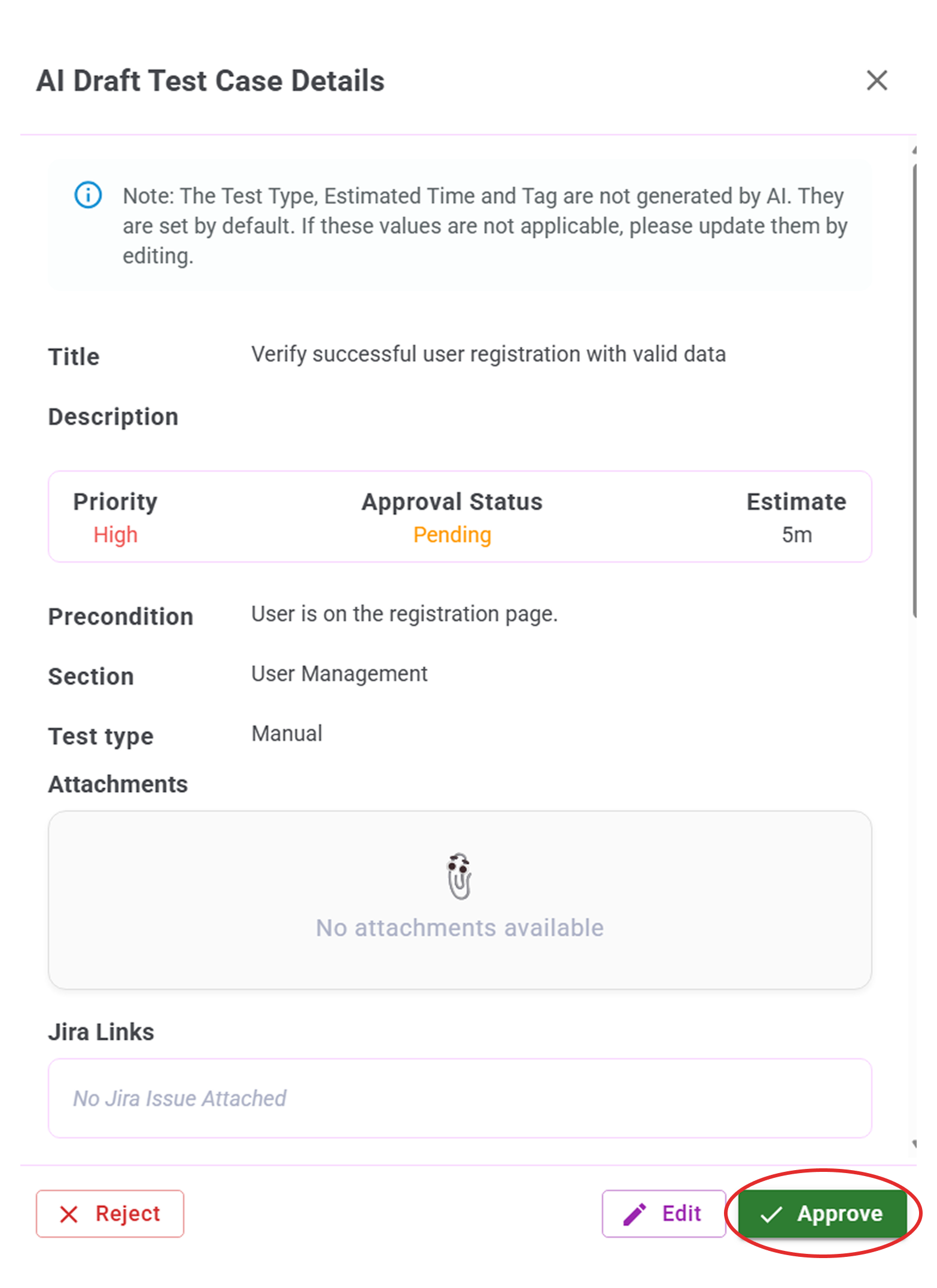
The AI Draft Test Case Details window displays:
- Title & Description
- Priority, Approval Status, Estimate
- Precondition
- Section
- Test Type
- Attachments
- Jira Links
Note: Test Type, Estimate, and Tags are set to defaults and should be reviewed.
Actions
- Edit – Modify the test case
- Approve – Accept the test case
- Reject – Discard the draft
Click Approve to continue.
Step 4: Choose Where to Save the Test Case
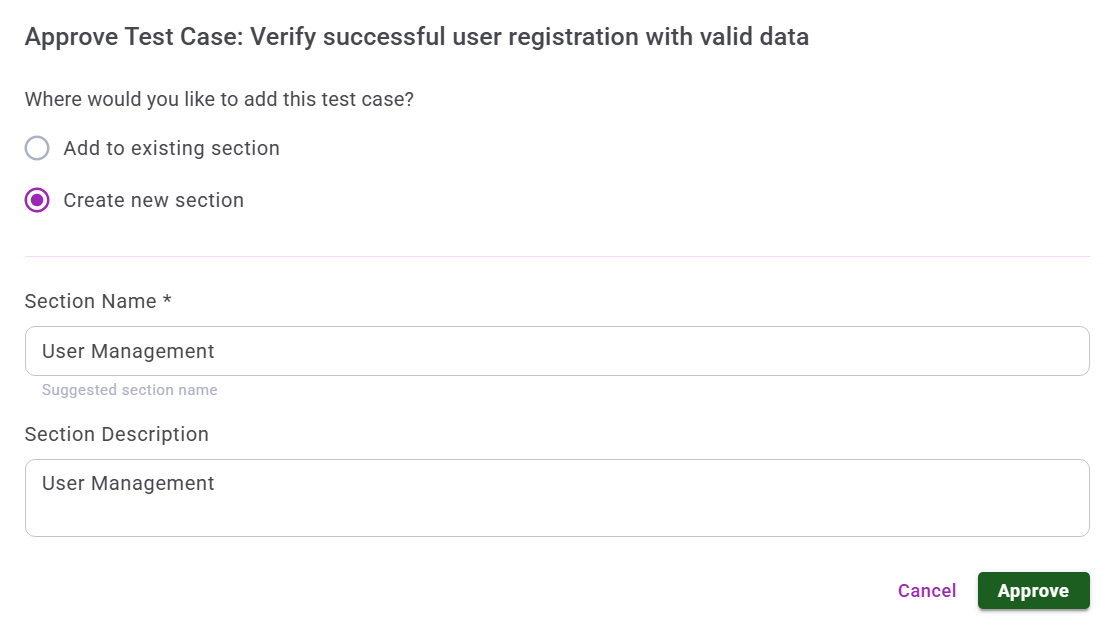
After approving, choose where the test case should be stored.
Option 1: Add to Existing Section
- Select Add to existing section.
- Choose a Section or Subsection from the dropdown.
Option 2: Create New Section
- Select Create new section.
- Enter Section Title.
- Enter Description.
Click Approve to proceed.
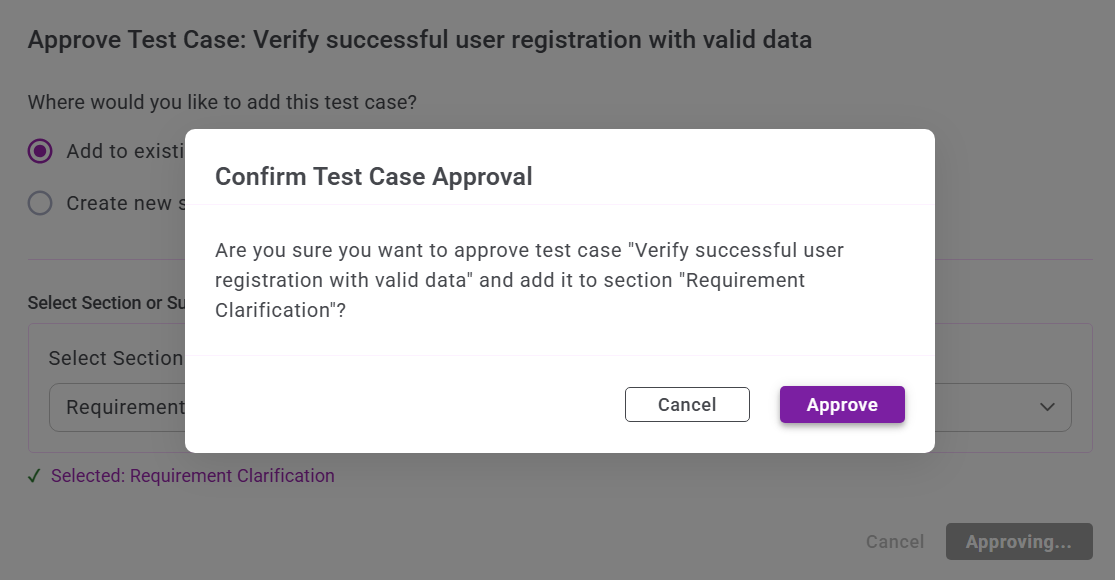
Step 5: Confirm Test Case Approval
A confirmation dialog appears.
- Click Approve to confirm.
- Click Cancel to go back.
 ---
---
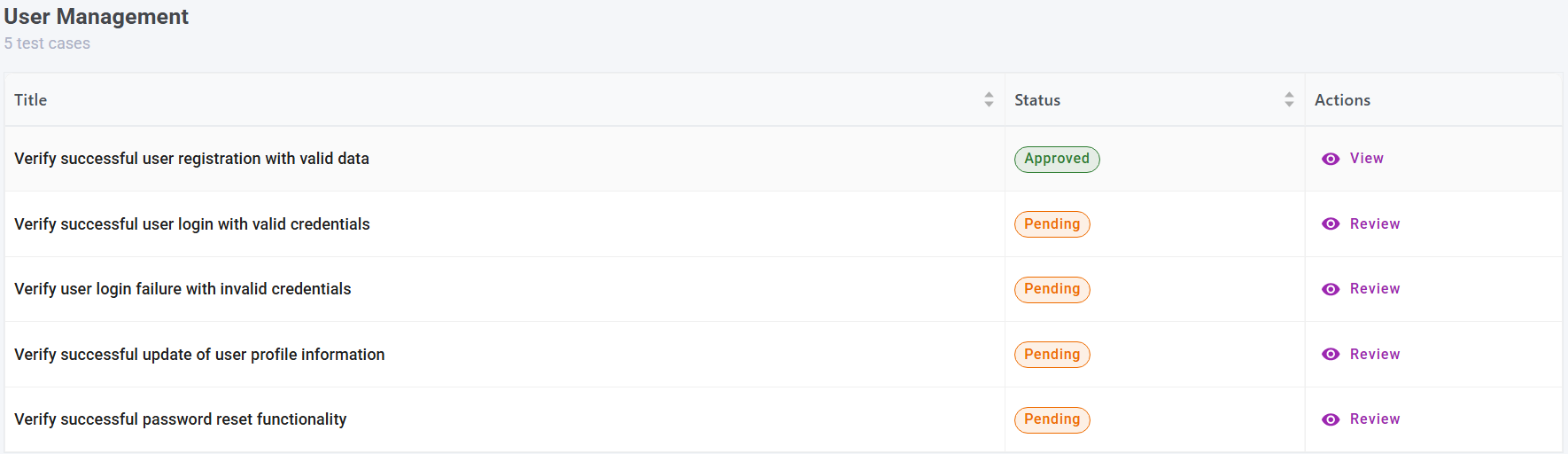
Step 6: Verify Approved Status
After approval:
- Status changes from Pending to Approved.
- Action changes from Review to View.
- The test case is now active.
 ---
---
Step 7: Use the Approved Test Case
Once approved:
- The test case appears in the Test Cases module.
- It can be added to:
- Test Plans
- Test Runs
This completes the AI Test Case Draft workflow.
Summary
AI Test Case Drafts helps you:
- Generate test cases using AI
- Review and refine drafts
- Organize them into sections
- Approve and convert them into real test cases
- Use them directly in execution flows
It provides speed without losing control.